Adding creations to a shop's shelf, made simple. Registering them now takes only a moment
Monday, October 12, 2026
Hello! This is the Zindies team.
A batch of ZINEs from a creator you know well has arrived at your shop. The conversation is already done, and the copies are right there on the counter. Now to put them on your Zindies shelf too — and until now, that took a few tedious steps.
Open the Contact Note, send a message with the creation attached, then press "Handle" on the card that comes back. "We've already talked this through — why do we need another round here?" We suspect more than a few shops felt that way. Sorry about that.
So we built "Add creations to the shelf" for the shop's shelf. Search by creator or creation name, pick what you have, and add it. That's all. No approval, no message in between.
How to add creations
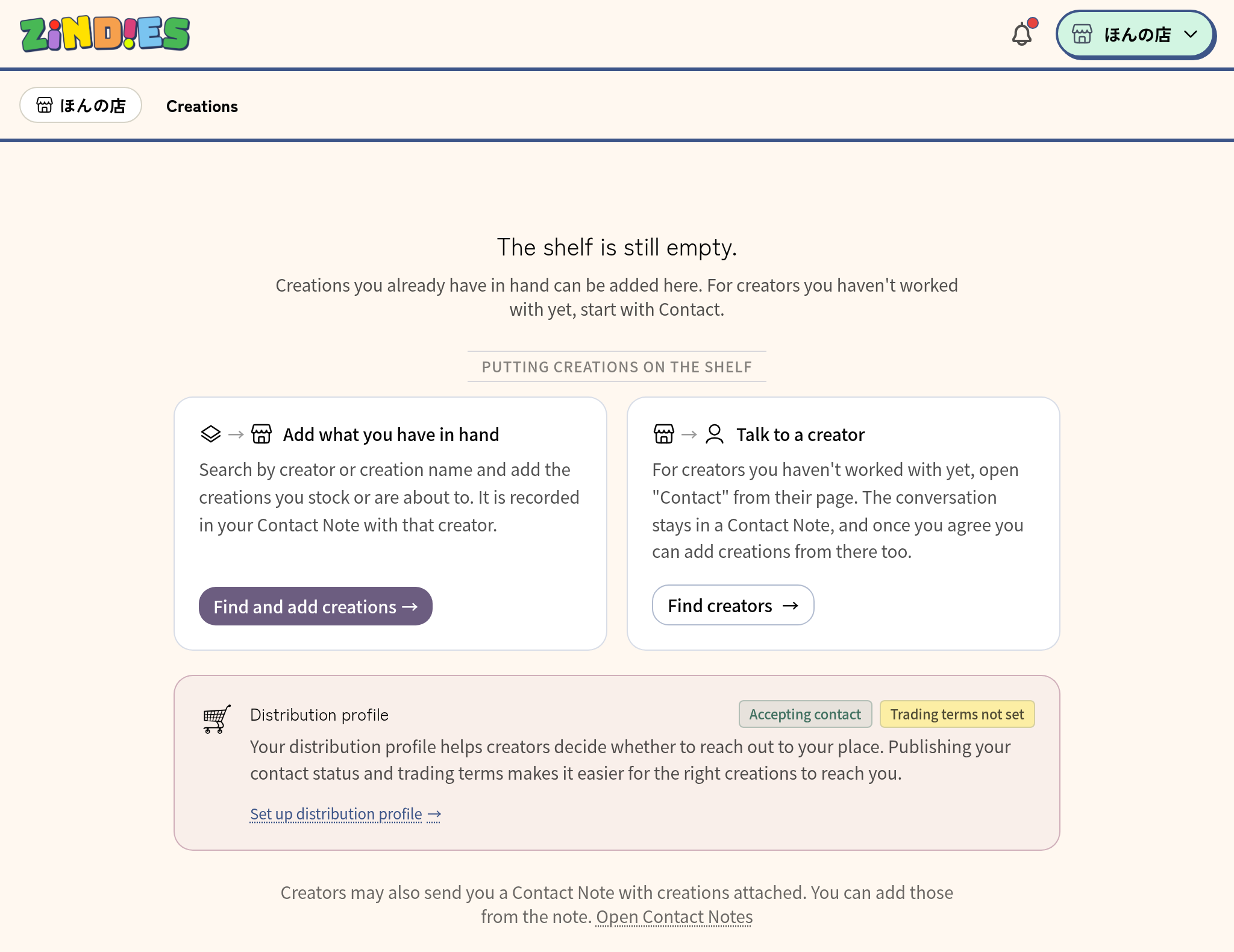
Open "stocked creations" from your shop's home (the management screen) and you'll find the "Add to shelf" button. While the shelf is still empty, a guide appears in the middle of the screen.
Open it and type a creator's name or a creation's title. For each creator found, their public creations are listed together.
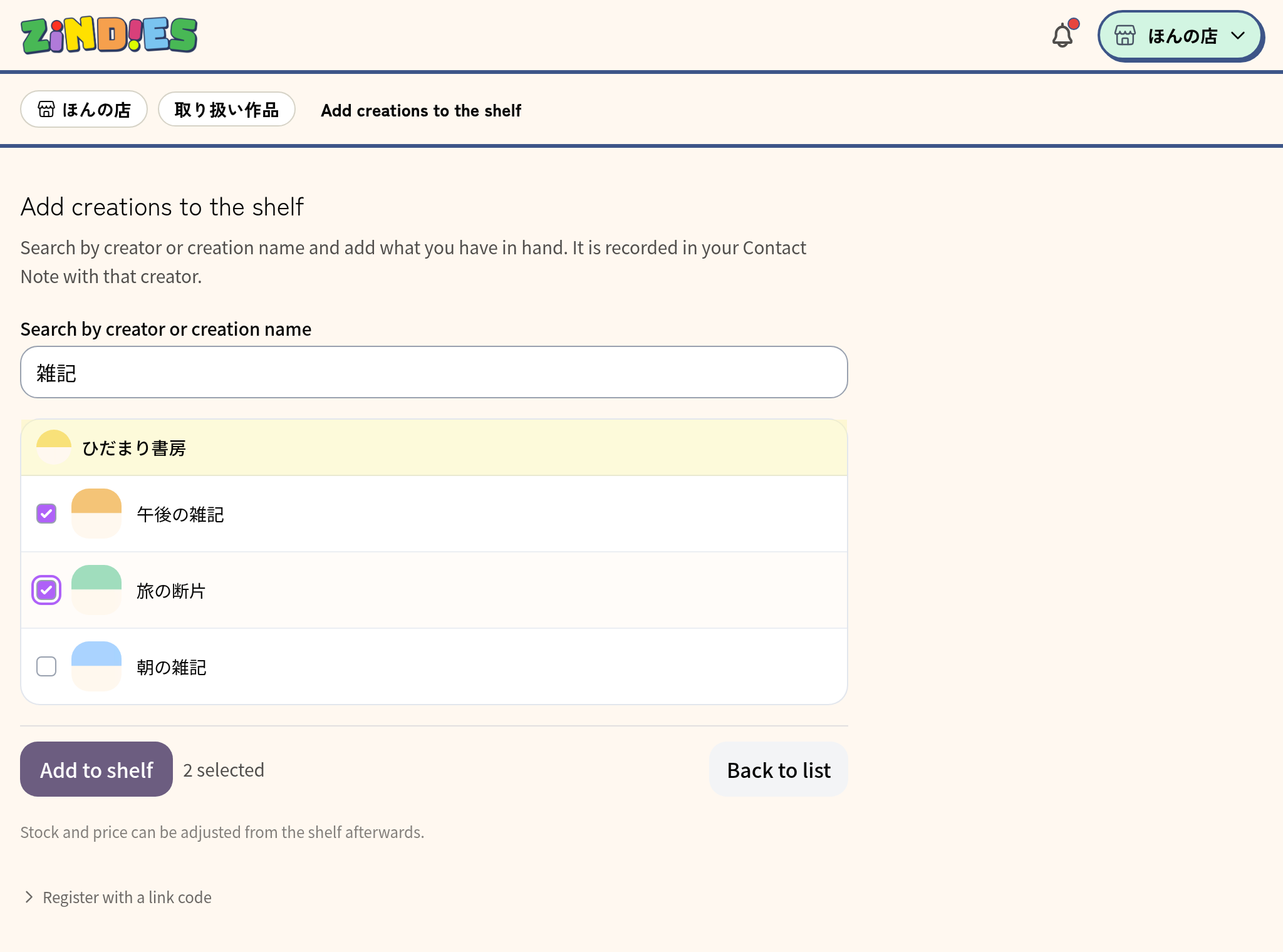
- Tick the creations you have in hand and press "Add to shelf". Creations from several creators can go on at once
- Creations you add start as "In stock". Stock and price can be adjusted later on the shelf
- Creations already on your shelf show "On the shelf" and won't be added twice
- If you can't find what you're looking for, the creator may not have registered that creation on Zindies yet. Asking them to register it is the quickest way forward
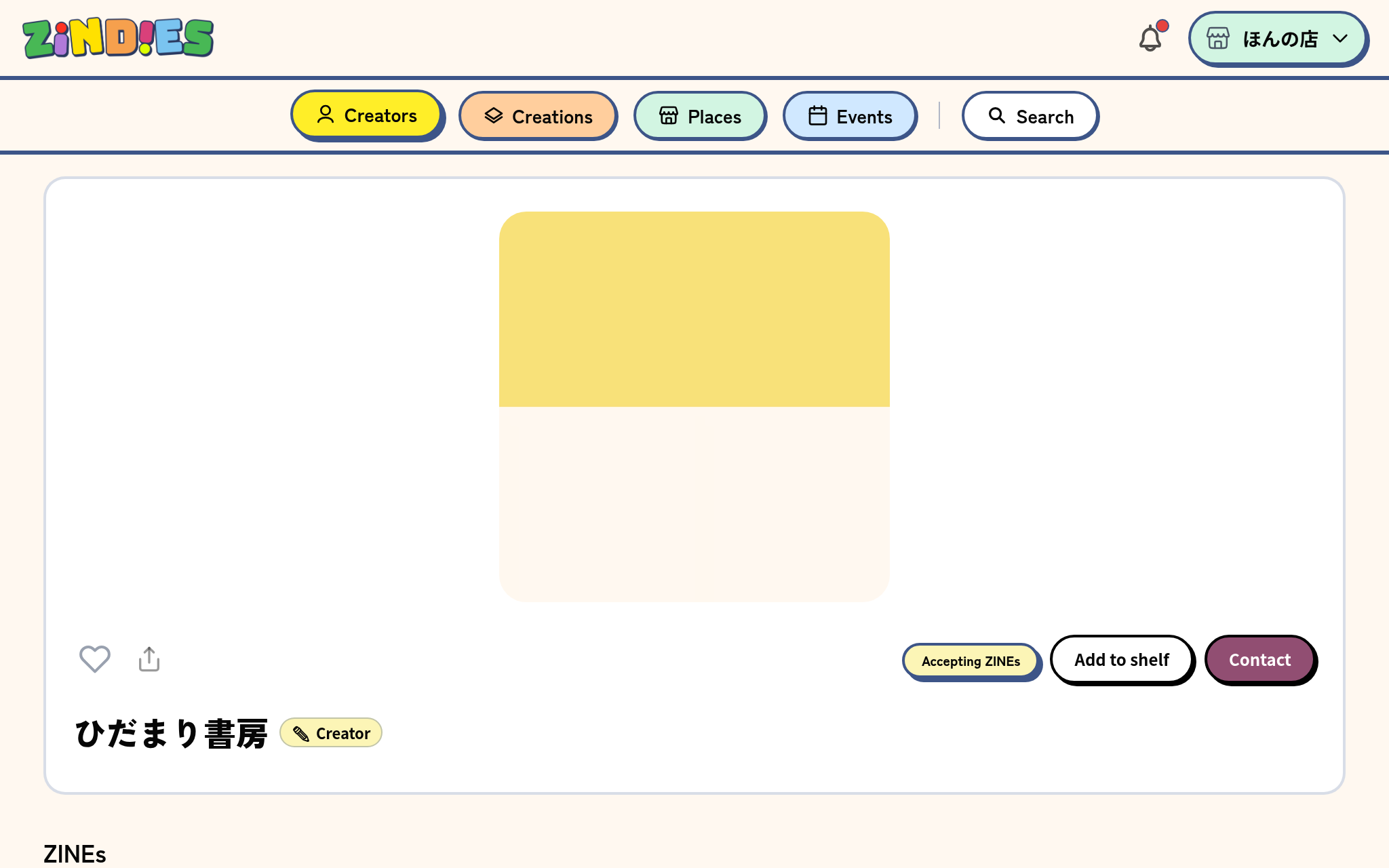
When you're viewing a creator's page, there's also an "Add to shelf" button next to "Contact". Open it from there and that creator's creations are already lined up for you.
What happens when you add creations
"If there's no approval, does the creator hear nothing?" — No, they do. This feature works simply by changing the order of the exchange between the shop and the creator.
When a shop adds creations to its shelf
- The creations appear on the shop's public page. The shop also appears under "handling places" on each creation's page
- A record is written in the Contact Note between the shop and that creator: "〇〇 added “…” to their shelf". If there's no note yet, one is created at that moment
- The creator receives that record by email. If several creations are added on the same day, only the first arrives right away; the rest are gathered into one email the next morning
When a shop adjusts stock or price
- Nothing is sent to the creator. The numbers on the shelf are the shop's own business
When a shop removes a creation from its shelf
- A "removed" record is written in the same Contact Note and reaches the creator
When a creator removes a shop from "handling places"
- This time the "removed" record is written in the shop's Contact Note, and the shop receives an email
In other words, adding and removing both leave a record in the one Contact Note between the shop and the creator, in order of time. The conversation, the start of handling, the end of it — all of it can be read by leafing through the same note. Even without an approval step, this note stays as the record of the exchange. If something is wrong, it can simply be put right.
When you need to talk first, nothing changes
To reach out to a creator you haven't worked with yet, use "Contact" on the creator's or creation's page. The exchange stays in the Contact Note, and once you agree to handle the creation, you can add it to the shelf from inside the note too.
Sometimes a creator sends you a Contact Note with creations attached. In that case, press "Handle" on the card inside the note and it goes on the shelf the same way.
To creators
Shops can now add your creations to their shelf without asking you first. So an email saying "〇〇 added “…” to their shelf" may arrive out of the blue, with no conversation beforehand. Don't be alarmed. It means the shop you handed your copies to has set up its shelf.
- The shop appears under "handling places" on the creation's page
- If it doesn't ring a bell, you can remove the shop from the creation's "handling places". The shop will be told that you did
- Creators can't add their own creations to a shop's shelf. Hand the copies to the shop and let them add it, or get in touch through "Contact"
"Add to shelf" is where handling begins
If the copies are there in the shop, there is no need for fine-grained procedures inside Zindies. The record of the exchange remains. We hope the moment a ZINE starts being handled feels a little lighter.
In case you are ever unsure, we have also added a few entries for shops and creators to the FAQ.