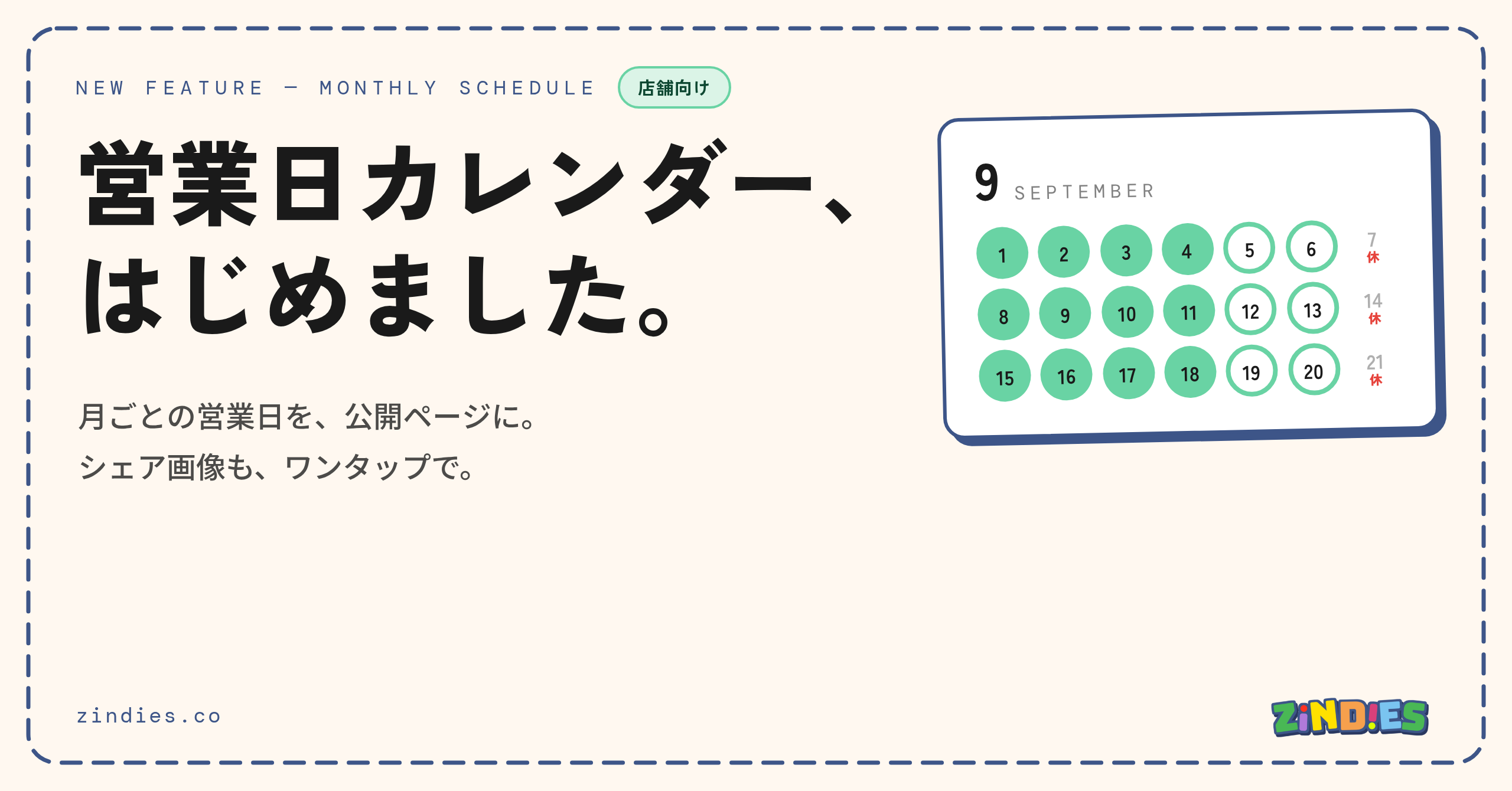
Answer "When are you open this month?" at a glance — the business day calendar is here
Tuesday, September 1, 2026
Hello! This is the Zindies team.
How do you announce your shop's business days each month?
"We're basically open Tuesday to Sunday, but this month there are a few days off for changing exhibits." "We'll be closed this weekend for an event pop-up." — A single line like "Closed on Mondays" often can't tell the whole story. Many shops end up making a calendar image by hand every month and posting it to social media. That's real work, isn't it?
So we built the business day calendar for shops. Just tap through the days of the month, and:
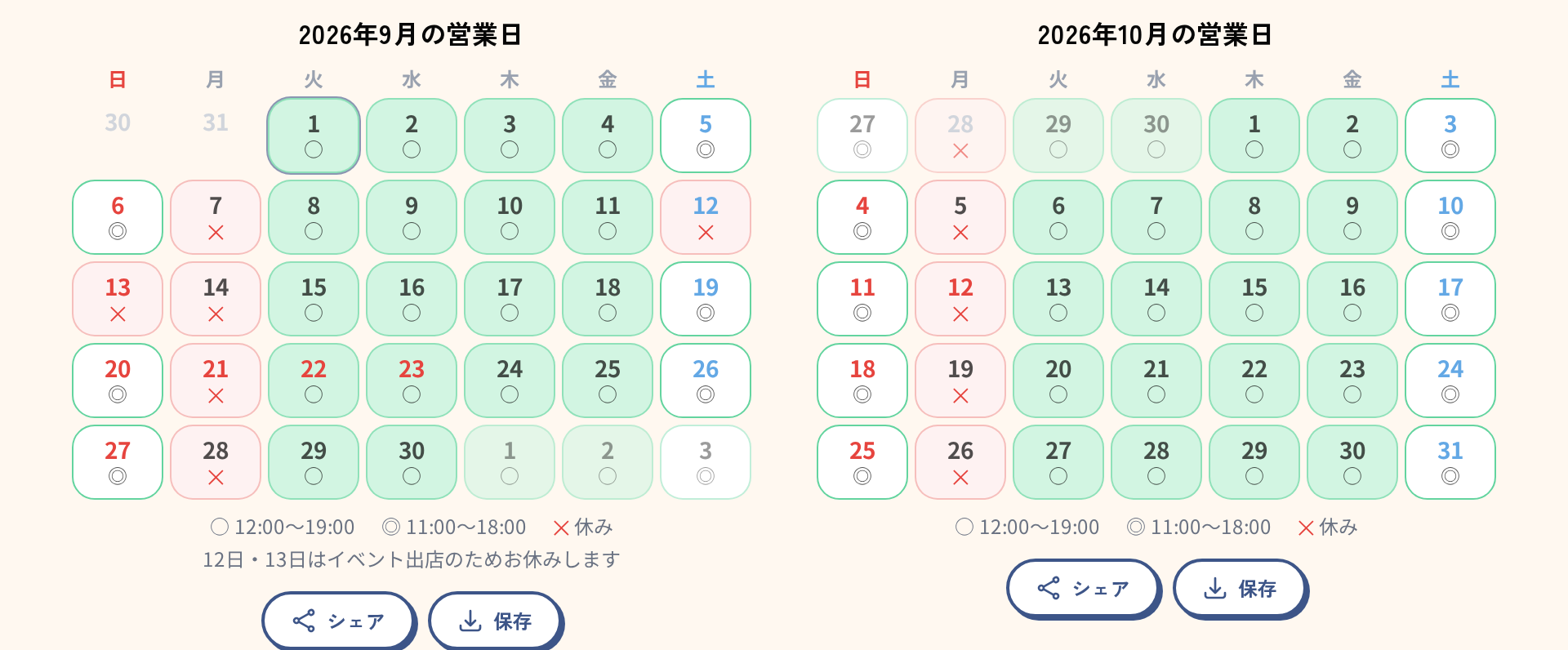
- A calendar for this month and next appears on your public page
- It also feeds the "Open now" status on your page
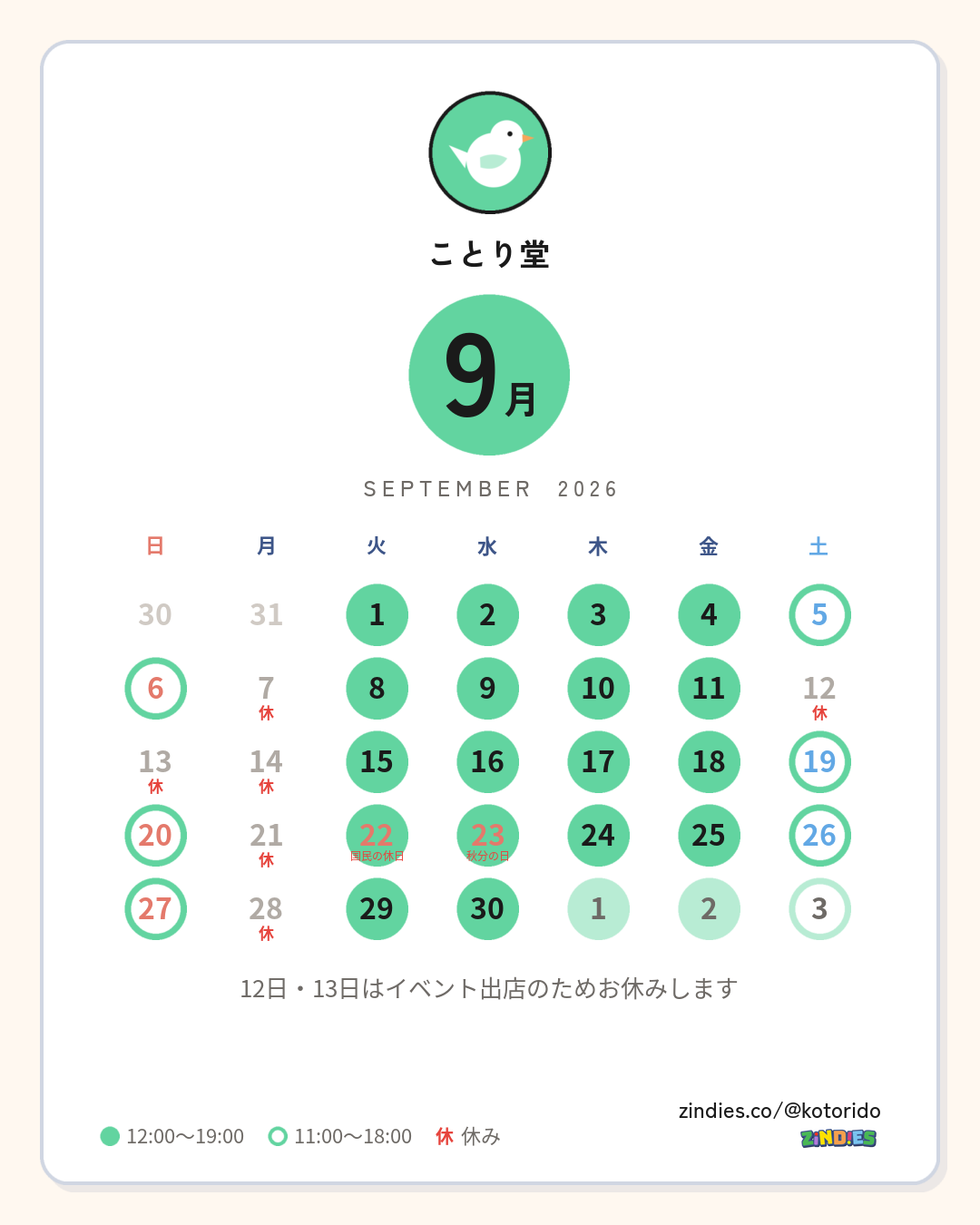
- A portrait share image, ready to post to Instagram and elsewhere, is one tap away
How to set it up
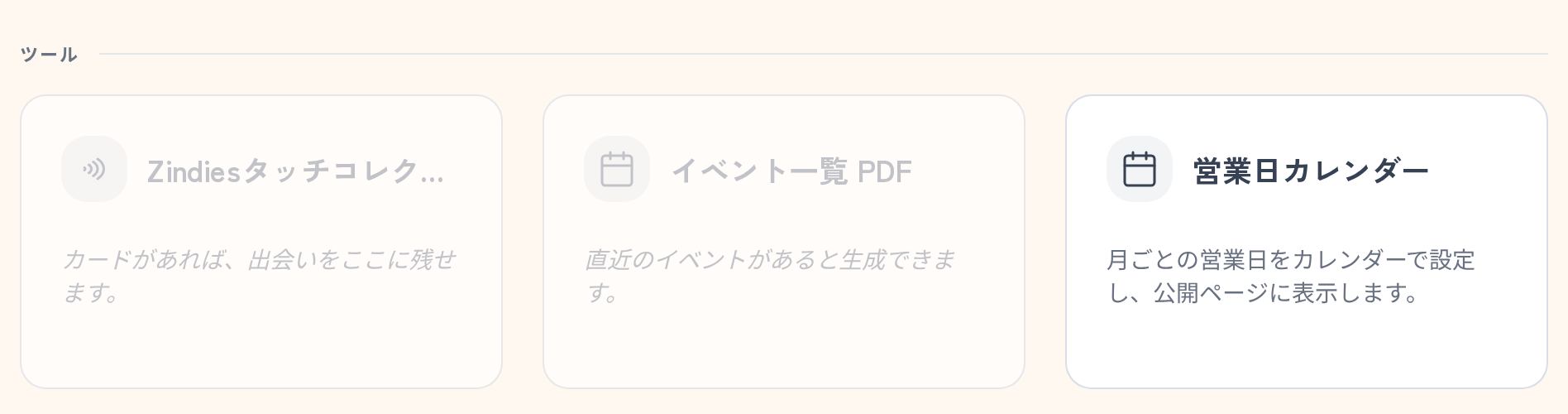
You'll find "Business day calendar" under "Tools" on your shop's home (the management screen).
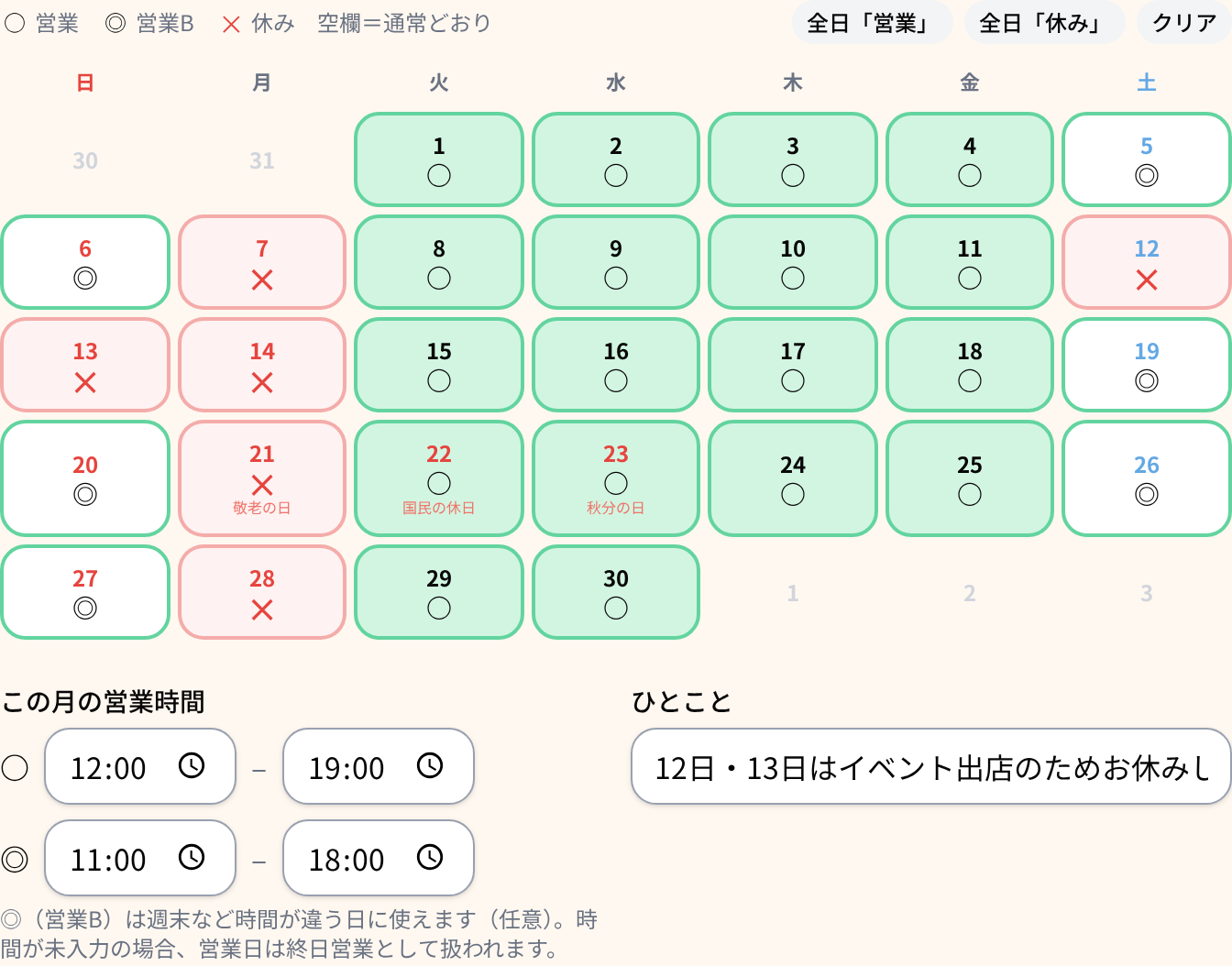
Open it, and it's just a matter of clicking dates.
- Each click cycles a date through ○ (Open) → ✕ (Closed) → blank. Blank days follow your regular hours and holidays
- Click a weekday header to change that whole column at once
- Filling everything with All days "Open" first and then fixing just the days off is the quick way
Enter "Hours for this month" and they'll appear on the calendar and the share image. If your hours differ on weekends, you can set a second time slot as ◎ (Open B).
The "short note" field is for that month's extra context. A line like "Closed during the second week for an event" gives your ✕ days a reason.
Register a shop icon and it appears in a circle at the top of the share image. A logo or mark that carries your shop's character works best. Unlike your shop photos, the shop icon appears only on the calendar image.
What it looks like on your public page
Visitors open the calendar from the "Business days" button on your shop's page. If both are set, this month and next appear side by side.
Days marked ○ or ✕ are also used for the "Open now" status — which should mean a few less "I went, but it was closed" moments.
The share image speaks four languages
At the bottom of the edit screen, that month's share image is ready and waiting. Hit "Share" to send it straight to Instagram or another app, or "Save" to download it for later.
The image can be generated in Japanese, English, Korean, and Traditional Chinese — just switch the "Language" selector on the edit screen. If your shop sees a lot of visitors from abroad, posting the Japanese and English versions side by side works nicely.
By the way, the short note is translated automatically, so the calendar on your public page shows up in each reader's language.
Once a month, a few taps
Setting it up is easy. Mark the calendar, send the share image to your stories — and that's "When are you open this month?" answered.
Next month's calendar can wait until the plans are set. Whenever it comes to mind, tap away. 😊